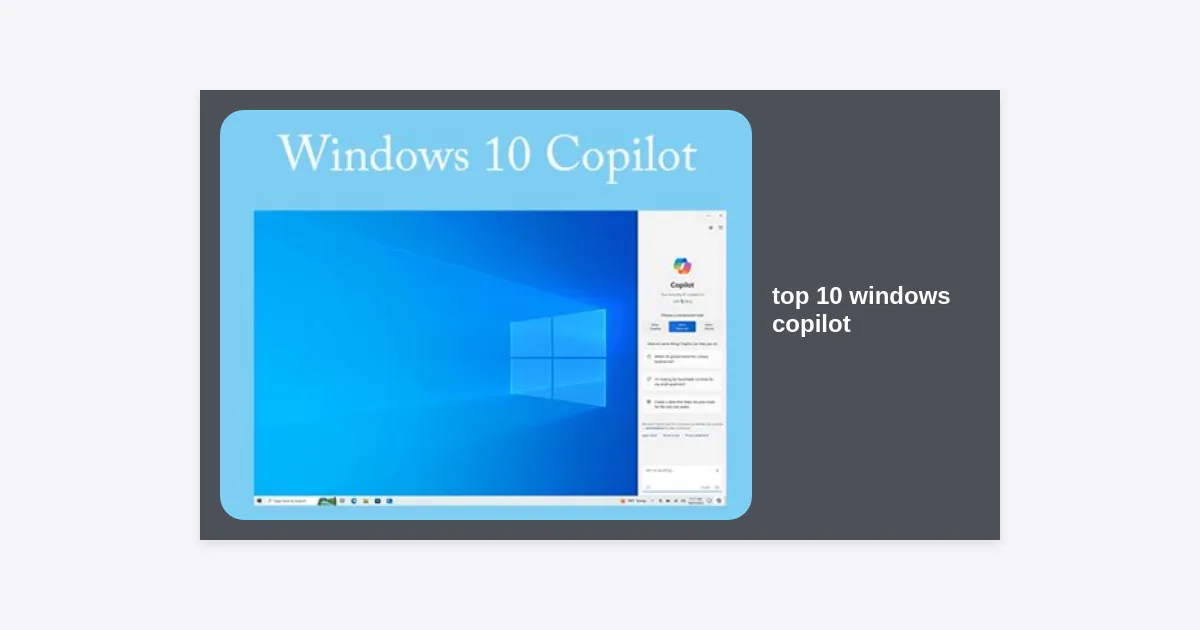
In the rapidly evolving landscape of personal computing, Artificial Intelligence (AI) has moved from a futuristic concept to a daily necessity. Leading this charge is Microsoft’s integrated AI assistant. If you are looking to maximize your efficiency, understanding the top 10 windows copilot features is the first step toward reclaiming your time and streamlining your workflow. Whether you are a student, a creative professional, or a corporate executive, these tools are designed to work harmoniously with your operating system.
Early adopters of AI integration have reported significant improvements in task completion speeds. According to recent surveys, users utilizing AI assistants in their OS environment save an average of 2 to 3 hours per week on mundane administrative tasks. In this comprehensive guide, we will explore why the top 10 windows copilot functionalities matters and how you can implement them today.
Table of Contents
- What is Windows Copilot?
- 1. Seamless System Configuration and Control
- 2. Instant Content Summarization and Analysis
- 3. Advanced AI Image Generation with DALL-E 3
- 4. Intelligent Writing and Drafting Assistance
- 5. Smart Window Management and Snap Layouts
- 6. Coding Assistance and PowerShell Automation
- 7. Automated Troubleshooting and Technical Support
- 8. Deep Integration with Microsoft Edge
- 9. Synergizing with Microsoft 365 Apps
- 10. Privacy and Data Control Features
- How to Enable and Access Copilot
- Pro Tips for Mastering Windows AI
- Download Our Copilot Cheat Sheet
- Conclusion: The Future of Windows Computing
What is Windows Copilot?
Windows Copilot is a centralized AI assistance platform powered by Large Language Models (LLMs), including GPT-4 and DALL-E 3. It is not just a chatbot; it is deeply woven into the fabric of Windows 11. By understanding the top 10 windows copilot uses, users can interact with their PC using natural language rather than digging through complex settings menus.
This integration marks a shift from “User Interface” to “Agentic Interface,” where the computer understands intent. It serves as your personal concierge, capable of performing actions across various applications and system states simultaneously.
1. Seamless System Configuration and Control
One of the standout entries in our top 10 windows copilot list is its ability to manipulate system settings. Instead of navigating to Settings > Personalization > Themes, you can simply type or speak the command “Change to dark mode.”
Copilot can also manage your focus sessions, toggle Bluetooth, and even adjust accessibility features. This is particularly useful for users with limited mobility or those who simply find the Windows settings hierarchy cumbersome. It transforms the way we interact with hardware by making software-level configurations as easy as sending a text message.
2. Instant Content Summarization and Analysis
We live in an era of information overload. Copilot addresses this by providing high-level summaries of long-form content. If you have a 50-page PDF open or a long research article in your browser, you can ask Copilot to “Summarize this page in five bullet points.”
“The ability to distill complex data into actionable insights instantly is the hallmark of modern productivity tools.”
This feature analyzes the context of your active window and provides a concise overview, saving hours of reading time. It is an essential tool for researchers and students who need to scan vast amounts of data quickly.
3. Advanced AI Image Generation with DALL-E 3
Included in the top 10 windows copilot highlights is the integration of DALL-E 3. Directly from your desktop, you can generate high-quality images for presentations, social media, or personal projects. By typing a prompt like “Create a photorealistic image of a futuristic city in the clouds,” Copilot produces several variations within seconds.
This eliminates the need to pay for external stock photo subscriptions or learn complex graphic design software for basic visual needs. The images are unique and can be further refined with subsequent prompts, allowing for a collaborative creative process between human and AI.
4. Intelligent Writing and Drafting Assistance
Stuck with writer’s block? Copilot excels at drafting emails, blog posts, and reports. Because it understands the nuance of tone—whether professional, casual, or enthusiastic—it can provide a solid foundation for any document. This is more than just a spellchecker; it is a structural editor that suggests better ways to phrase sentences and organize thoughts.
5. Smart Window Management and Snap Layouts
Managing multiple windows is a core part of the Windows experience. As part of its top 10 windows copilot features, the AI can assist in organizing your desktop. You can ask it to “Snap my windows for a research layout,” and it will automatically arrange your open applications into a split-screen view that prioritizes your browser and document editor.
This feature reduces the friction of multitasking and helps maintain a clean, organized workspace, which studies show contributes significantly to mental clarity and task performance.
6. Coding Assistance and PowerShell Automation
For IT professionals and developers, Copilot is a powerful ally. It can write PowerShell scripts, troubleshoot command-line errors, and explain code snippets. If you need to automate a recurring file backup, you can ask Copilot to “Write a script to backup my ‘Documents’ folder to an external drive every Friday at 5 PM.”
This democratizes automation, allowing users who aren’t career programmers to leverage the power of the terminal to improve their local machine’s efficiency.
7. Automated Troubleshooting and Technical Support
We have all encountered the frustration of a printer not working or audio failing. Copilot acts as a first-line support technician. By describing the issue, such as “Why is my sound not working?”, Copilot can run diagnostic checks, suggest common fixes, and even guide you through the process of updating drivers.
This reduces the need for external tech support calls and empowers users to resolve common issues independently. It is a key reason why it ranks so highly in the top 10 windows copilot utilities.
8. Deep Integration with Microsoft Edge
Windows Copilot lives in a sidebar that follows you across the OS, but its integration with the Edge browser is particularly deep. It can compare products on a shopping site, find coupons, and even rewrite text directly within a browser-based CMS like WordPress or Ghost. This seamless transition between OS and Web is a game-changer for digital nomads and web-based professionals.
9. Synergizing with Microsoft 365 Apps
While Microsoft 365 has its own Copilot, the Windows-level integration allows for cross-app coordination. You can ask Copilot to find a specific data point in an Excel spreadsheet and use it to draft a response in Outlook. This holistic approach to productivity ensures that your data isn’t siloed, making the top 10 windows copilot list incomplete without mentioning this ecosystem synergy.
10. Privacy and Data Control Features
Trust is critical when using AI. Microsoft has built Copilot with enterprise-grade security. Users have granular control over what the AI can see and learn from. You can clear your chat history, manage data permissions, and ensure that sensitive information remains local if required. Understanding these settings is vital for maintaining a secure computing environment.
How to Enable and Access Copilot
To use these top 10 windows copilot features, you must be running an updated version of Windows 11. You can access it by clicking the Copilot icon on the taskbar or by using the keyboard shortcut Win + C. If you don’t see it, ensure your region supports the feature and that your Windows updates are current.
Pro Tips for Mastering Windows AI
- Be Specific: The more detail you provide in your prompts, the better the output. Instead of “Write an email,” say “Write a professional email to my manager explaining why I need a two-day extension on the Project X report.”
- Experiment with Modes: Copilot offers Creative, Balanced, and Precise modes. Use ‘Creative’ for brainstorming and ‘Precise’ for technical questions or scripts.
- Use the Sidebar: Keep the Copilot sidebar open while you work to quickly drag and drop images or text directly into your documents.
Download Our Copilot Cheat Sheet
Want to keep these tips handy? We have compiled a comprehensive shortcut and prompt guide to help you master the top 10 windows copilot functionalities.
Conclusion: The Future of Windows Computing
The top 10 windows copilot features we have discussed represent just the beginning of the AI revolution in personal computing. By integrating AI into the core of the operating system, Microsoft has fundamentally changed how we interact with technology. It is no longer about learning how to use software; it is about learning how to communicate your needs to an intelligent partner.
Start small by using Copilot for simple tasks like changing settings or summarizing web pages. As you become more comfortable, move into advanced areas like scripting and content creation. The more you use it, the more indispensable it becomes. Stay updated with the latest Windows builds to ensure you always have access to the newest AI advancements.
Key Takeaways:
- Copilot saves time by automating system settings and troubleshooting.
- Content summarization and image generation boost creativity and research speed.
- Integration with the Microsoft 365 ecosystem creates a seamless workflow.
- Privacy controls are robust, ensuring user data remains protected.